GoTo App Installation - iPhone
Steps for installing the GoTo app on an iPhone:
Step 1: Go to your app store and download the app below
Step 2: Open the app then click "Sign in to GoTo"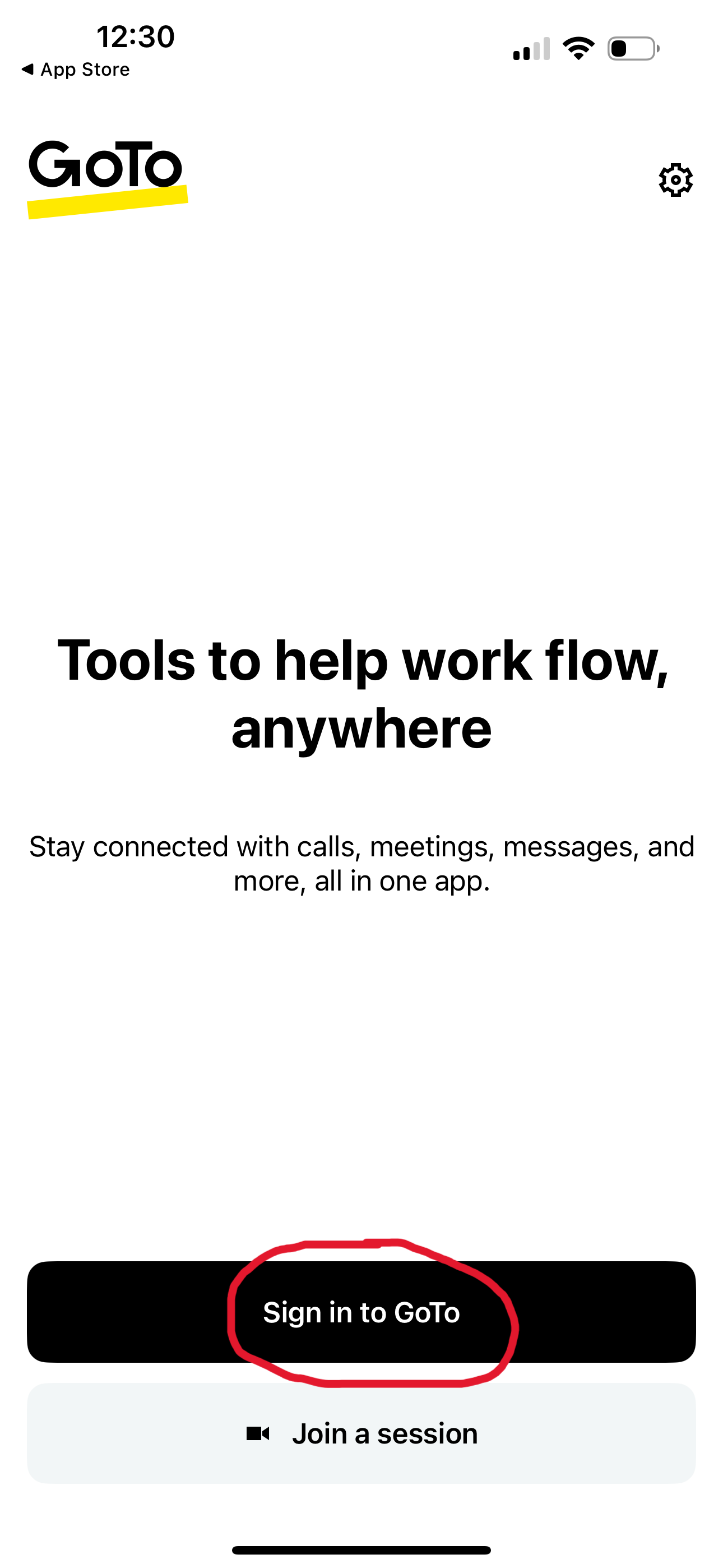
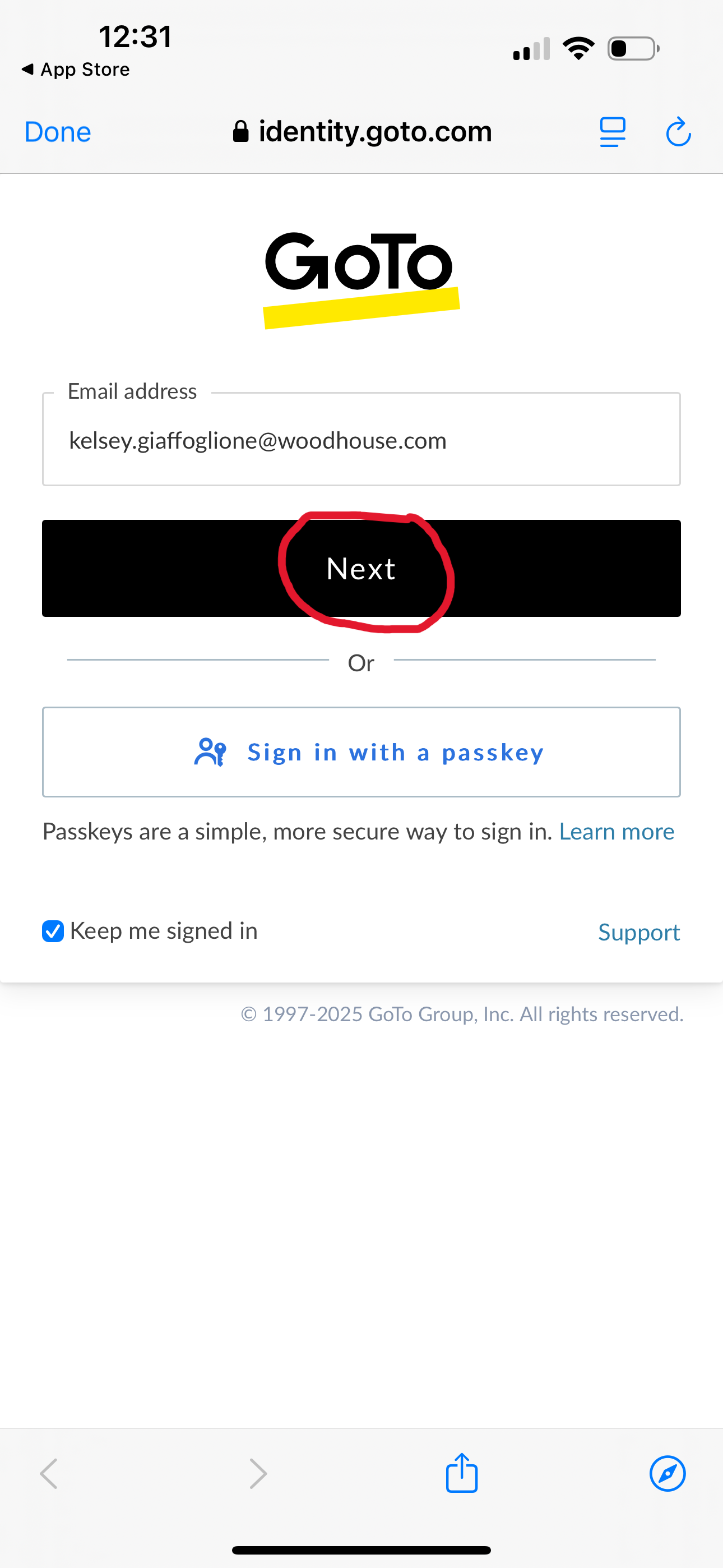


Step 3: Enter your Woodhouse email address and then click "Next"
Step 4: Do not enter your password yet, instead click on the option below that is "Sign in with Company ID"
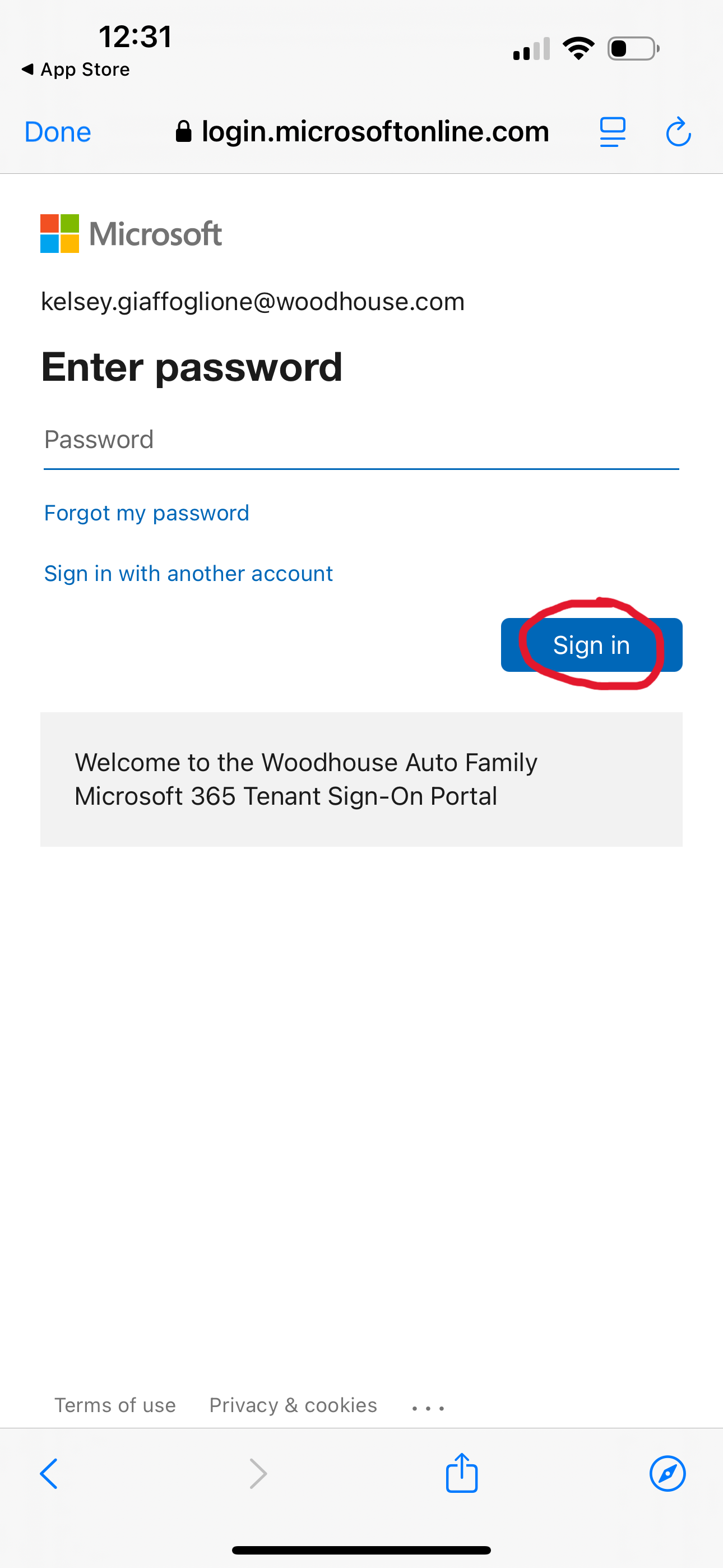
Step 5: It will then divert you to a Microsoft login, this is where you will enter your Woodhouse email passcode and click "Sign in"
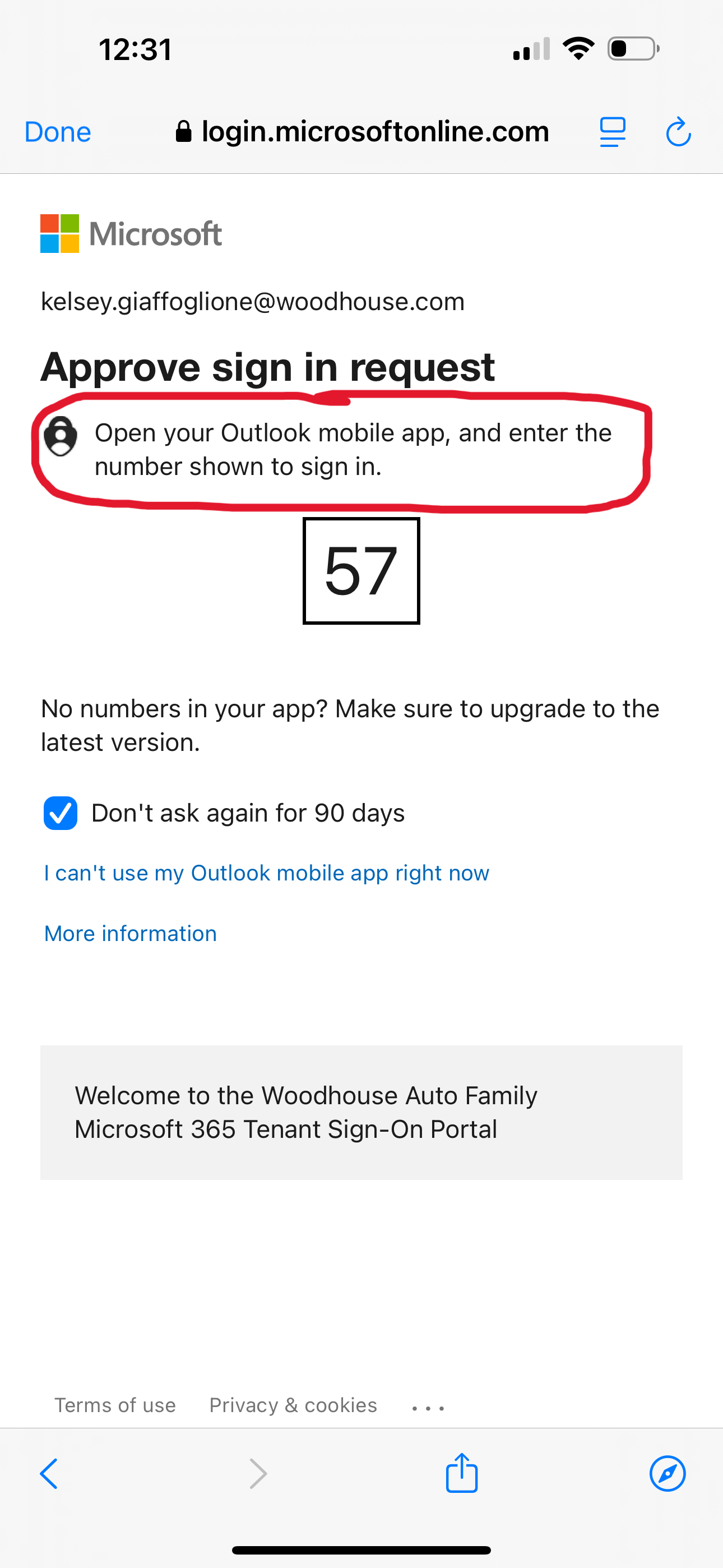
Step 6: Approve the sign in request in Outlook using the number given
Step 7: Navigate back to the GoTo app and select "Yes" on the stay signed in question
Related Articles
Native mail app on your Apple device
Native mail app on your Apple device To setup a connection to our email server you cannot be on a Woodhouse Guest or WHPrivate Wi-Fi network. Please turn off Wi-Fi before starting to setup your phone. Go to “Setting – Mail - Accounts” and click “Add ...GoTo App Sound Settings
You can adjust the sounds on your GoTo desktop app. Select your initials circle in the top right corner Select Settings On the left Select Voice - Audio Here you can adjust Ringtone, the input for your Microphone, Output for speakers, and output for ...GoTo Work Schedule
Setting your work schedule in GoTo: Setting a work schedule in GoTo allows you to take calls on your mobile app when you are working and keeps calls from coming into the mobile app when you are off. 1: Open the mobile app and select the profile icon ...Goto App End User Guide
Click this link to open the Goto App User GuideGoTo App Refresh/Clear Cache
Under the Help drop-down menu, select Refresh and the app will restart. If this does not fix the issue, try to clear cache and exit.